Cloud Installation
Install API
Setup Git repository
Using the command line, navigate to the folder ~/ionshop-X.X.X/api
Initialize a new repository.
git init
Add all the files to the repository.
git add .
Commit the changes made to the repository.
git commit -m "Initial commit"
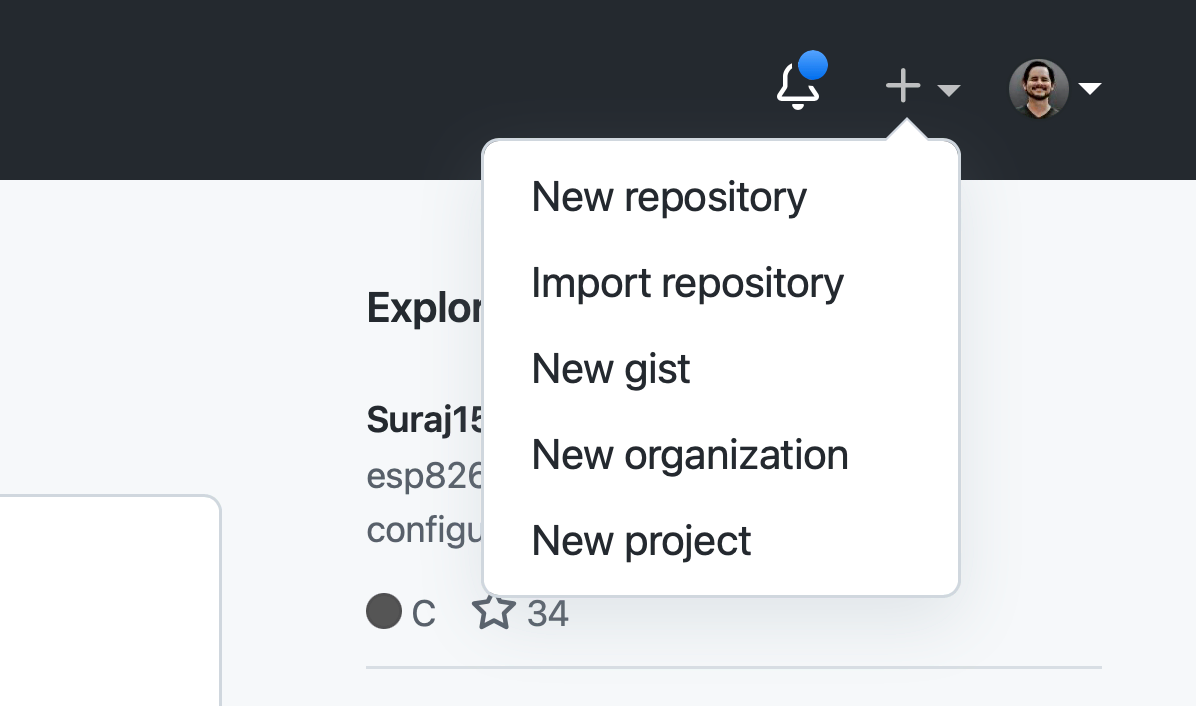
Go to GitHub, and create a new repository.
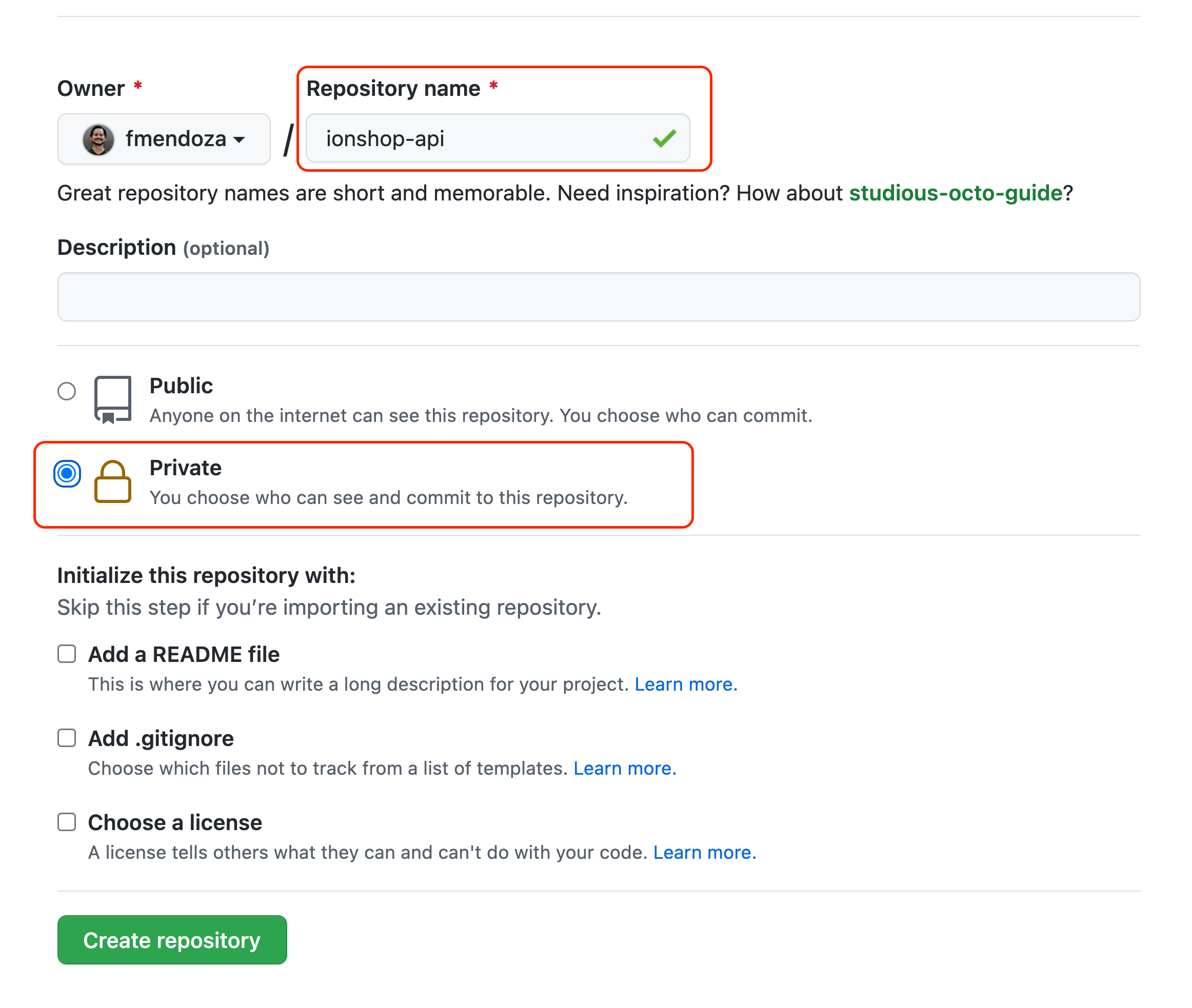
Enter a repository name, choose Private and click Create repository.
Copy the repo URL and add the remote:
~/ionshop-X.X.X/api > git remote add origin https://github.com/user/ionshop-api
Push the code to the repo
git push -u origin master
Replace user with your github username.
App Platform
Setup Database
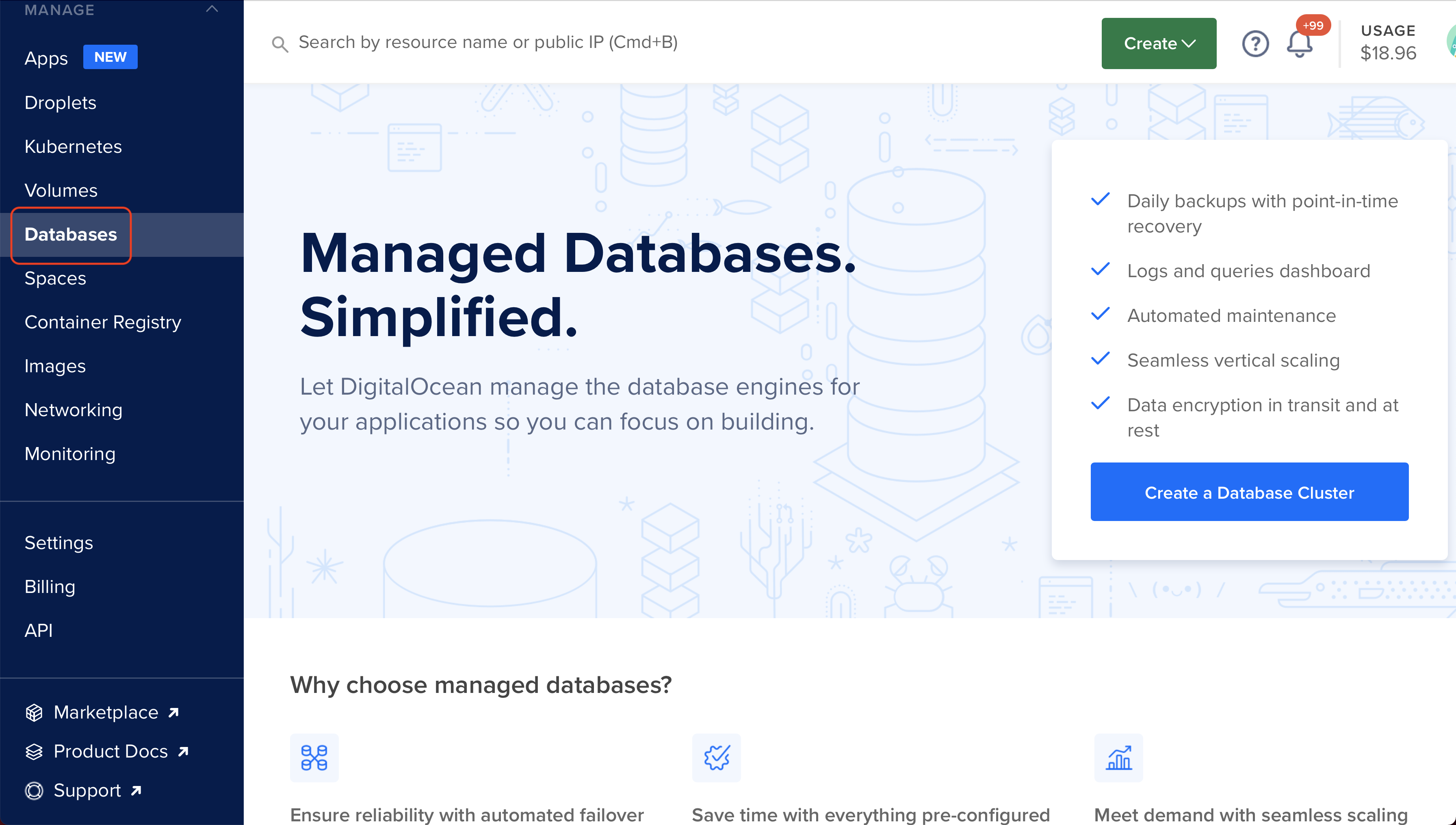
Go to DigitalOcean, and click on Databases > Create a Database Cluster
Sign up using our referral link to get $100 USD credit.
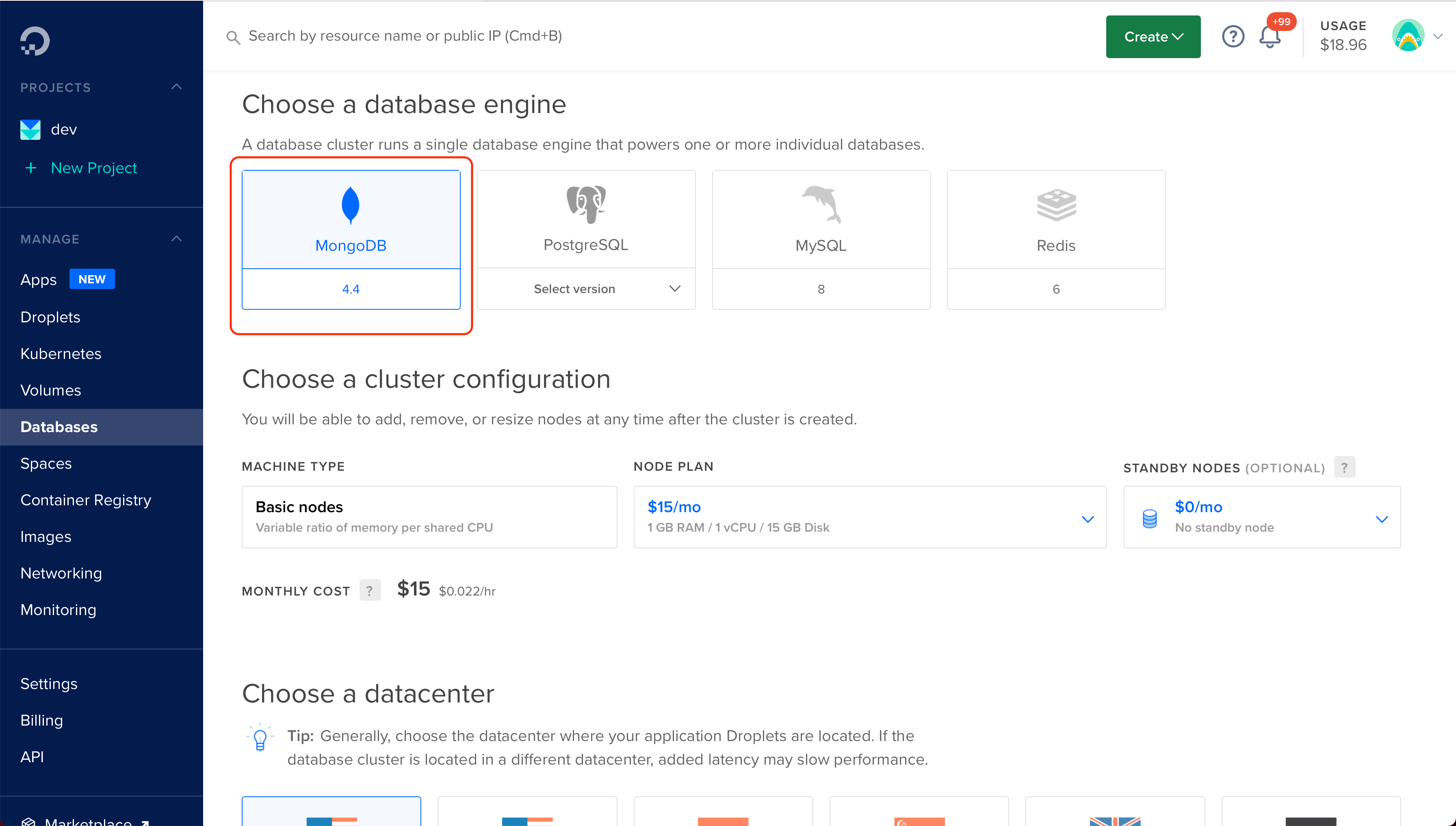
Choose MongoDB as the database engine.
The basic plan ($15/mo) is good starting point. You can upgrade later to a machine with more resources, if it’s needed.
Choose a datacenter. Ideally, the location should be close to where your users are.
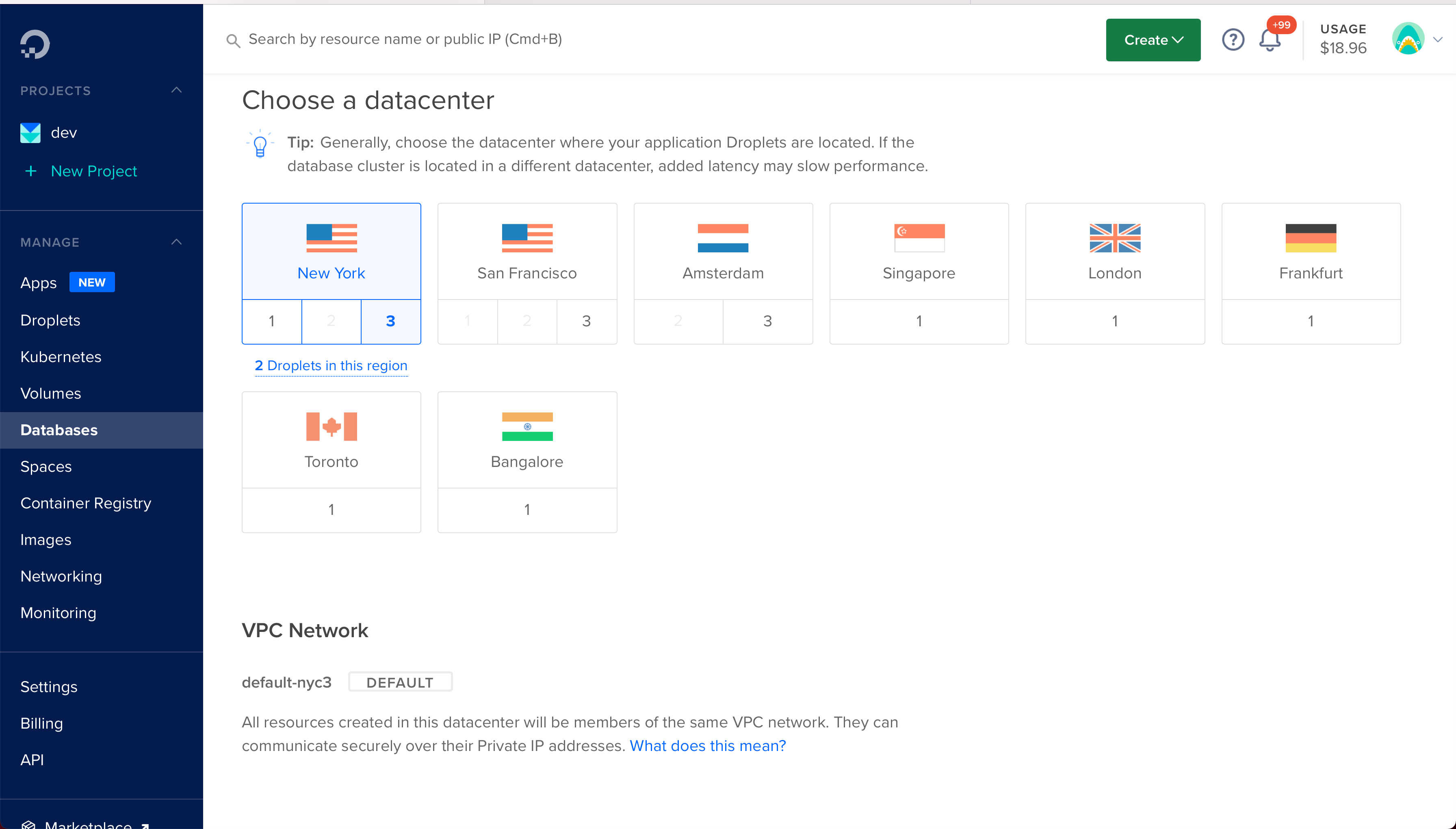
Enter a database name and click Create a Database Cluster.
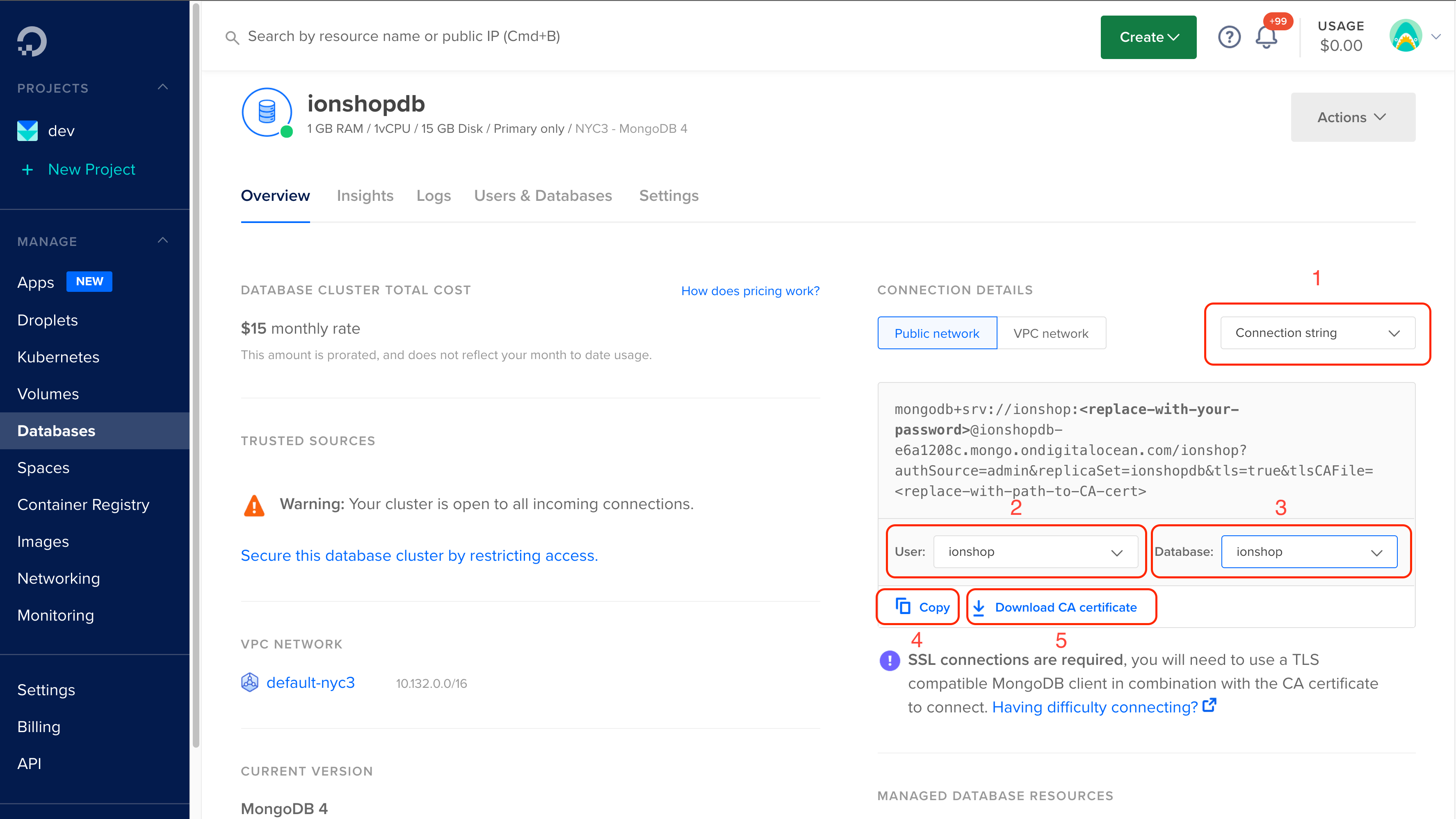
Once the database is up and running, click Users & Databases. Add a new user ionshop and a new database ionshop.
Go back to Overview, and follow these steps:
- Select the option Connection string
- Select the user ionshop
- Select the database ionshop
- Click Copy
- Download CA Certificate
Copy the file ca-certificate.crt to ~/ionshop-X.X.X/api/, and add the database certificate to the repository.
git add ca-certificate.crt
git commit -m "Add database certificate"
git push origin master
Also, save a copy of the connection string somewhere safe. We will need it later.
Setup App
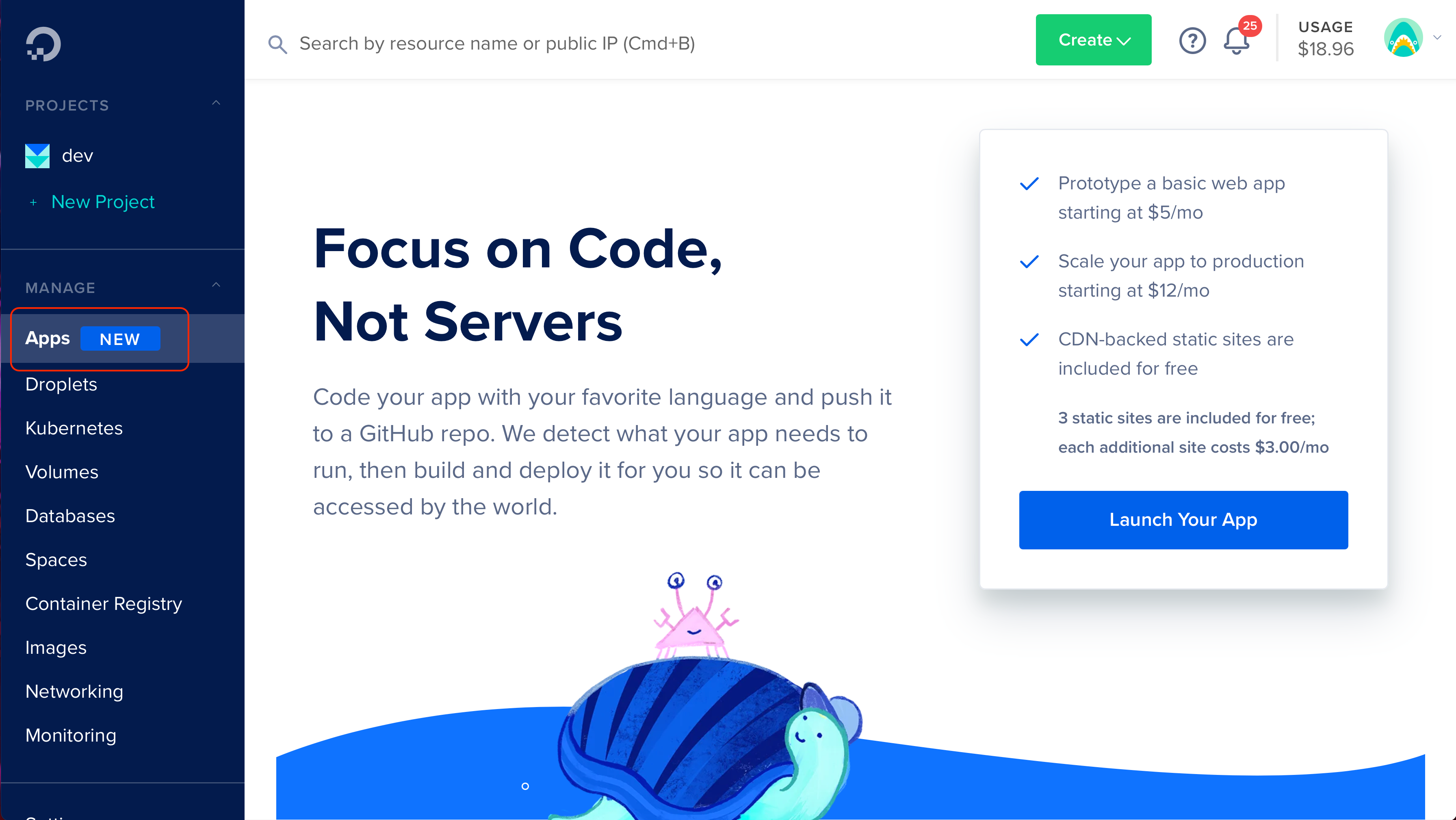
Go to DigitalOcean, and click on Apps > Launch Your App
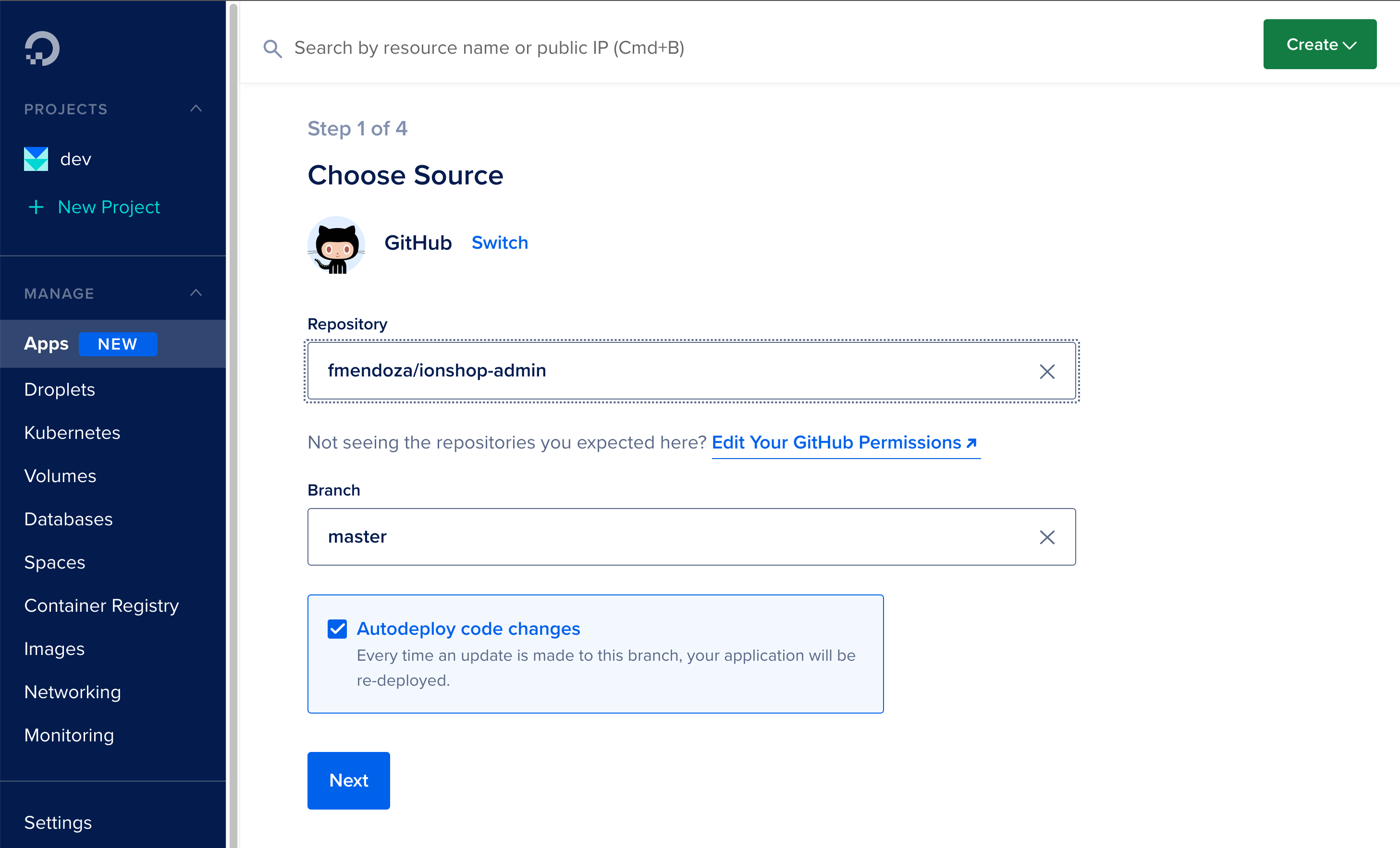
Choose GitHub as the source. Select the repo and click Next.
Under Environment variables, click Edit.
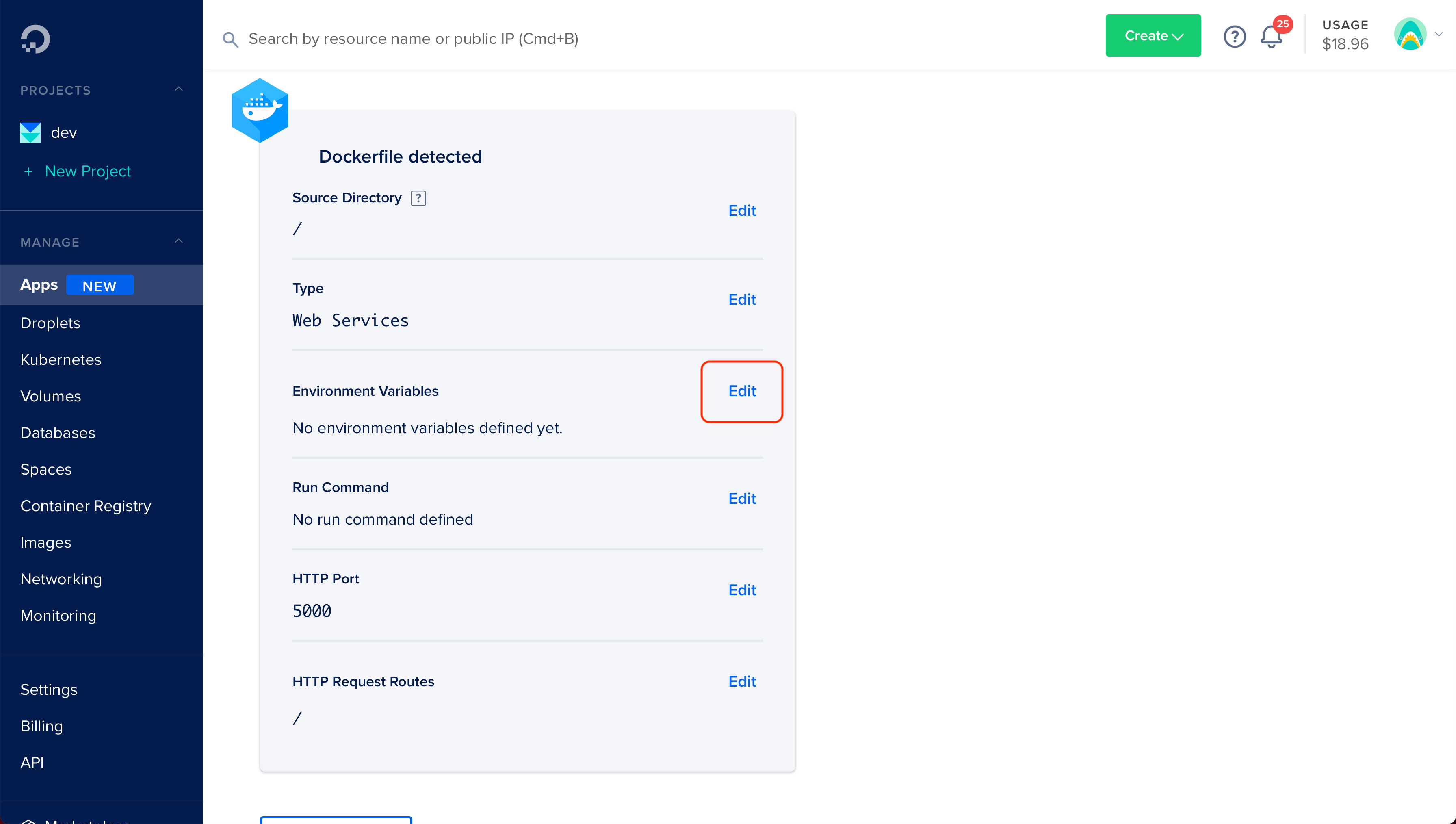
The following variables are required:
NODE_ENVAPP_IDAPP_NAMEPUBLIC_SERVER_URLMASTER_KEYREAD_ONLY_MASTER_KEYDATABASE_URLDB_PATH_CERTIFICATE
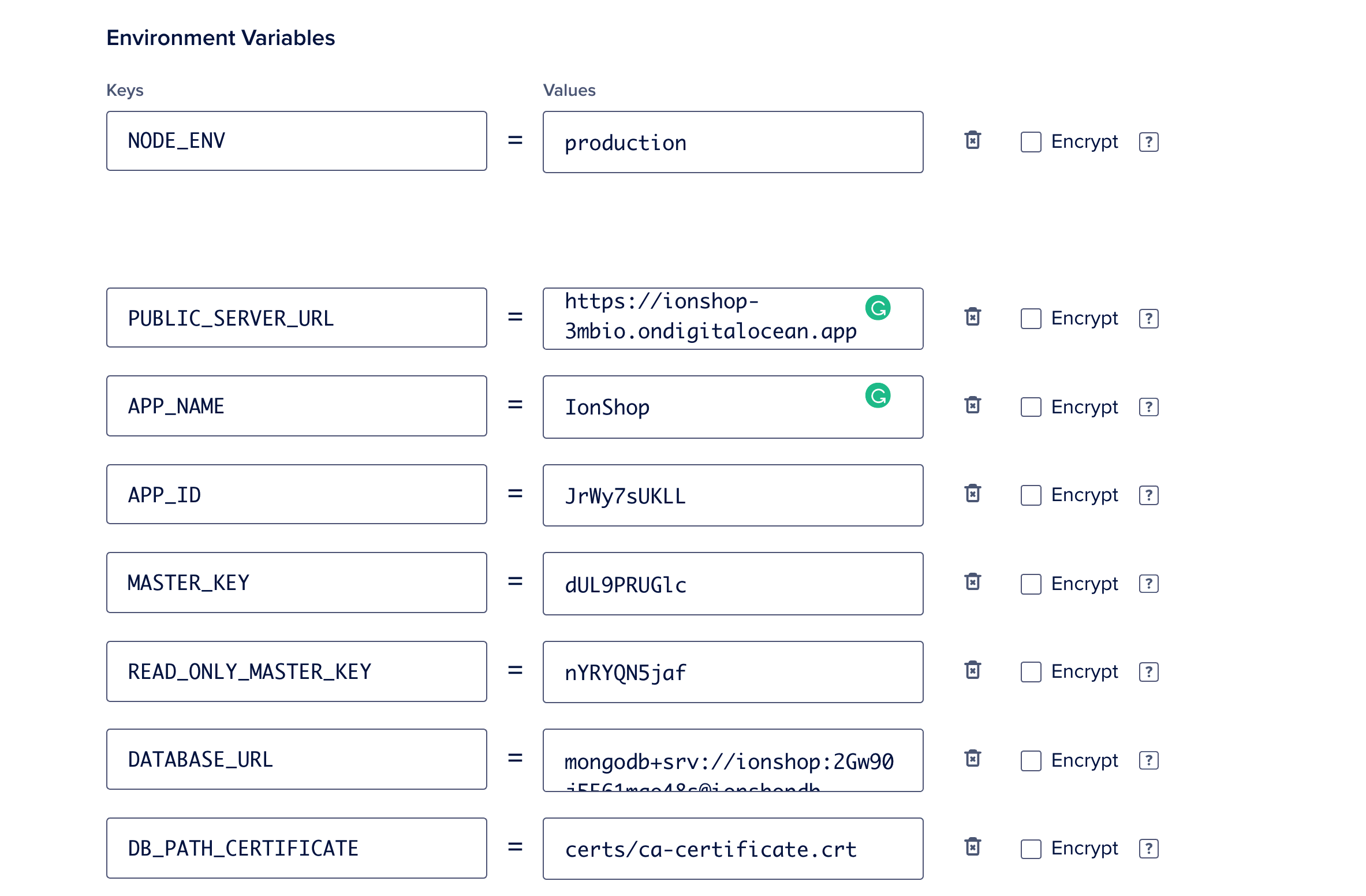
Notes:
- Use the connection string as the value of the
DATABASE_URLvariable. - Visit random.org to generate the
APP_ID,MASTER_KEY, andREAD_ONLY_MASTER_KEY. - Set the
PUBLIC_SERVER_URLwith your own domain, or use the one provided by DigitalOcean (see next step).
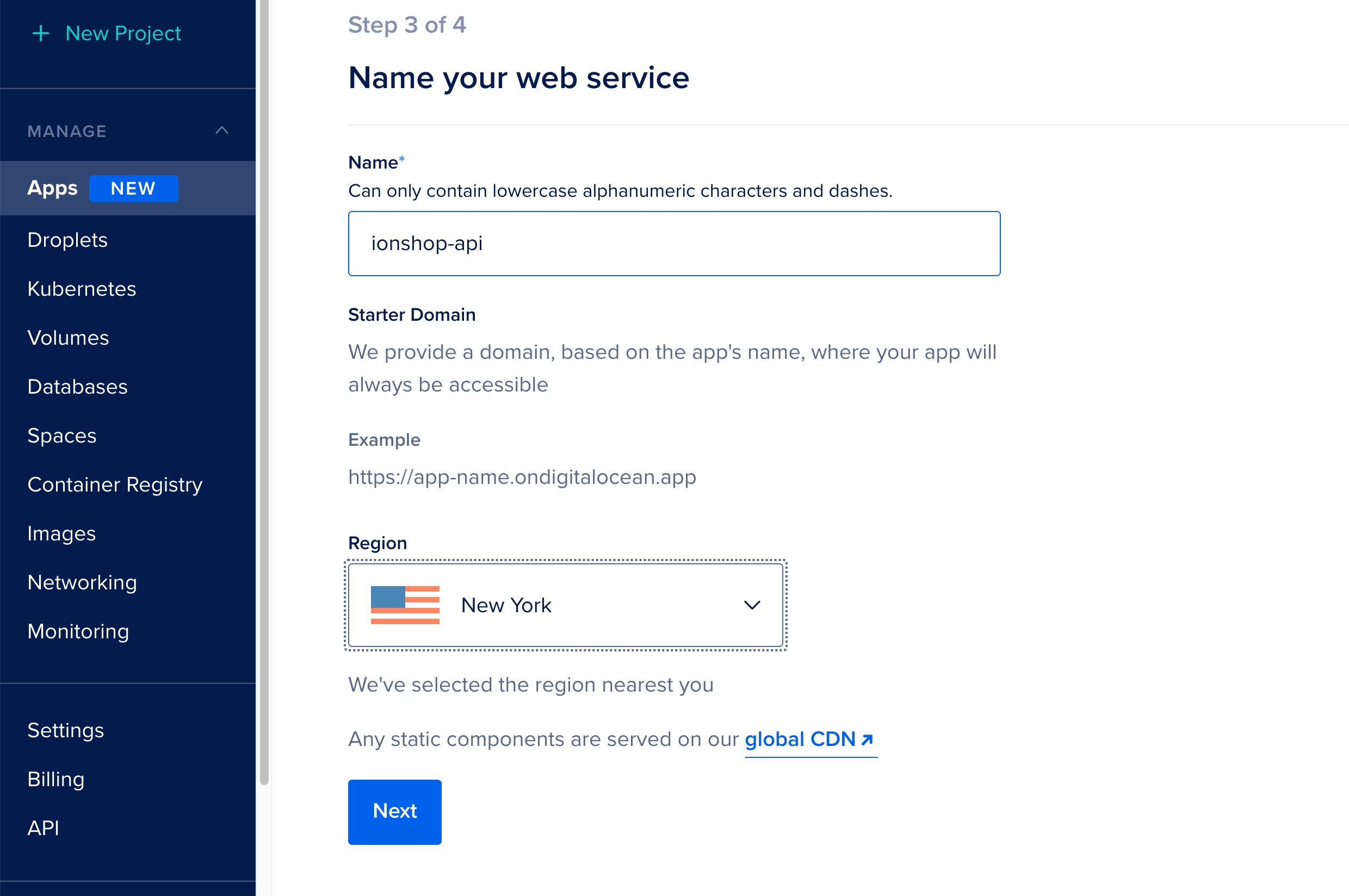
Click Next. In the following screen, type the web service name, select a Region, and click Next again.
If you don’t have a domain name yet, you could use the starter domain as the PUBLIC_SERVER_URL
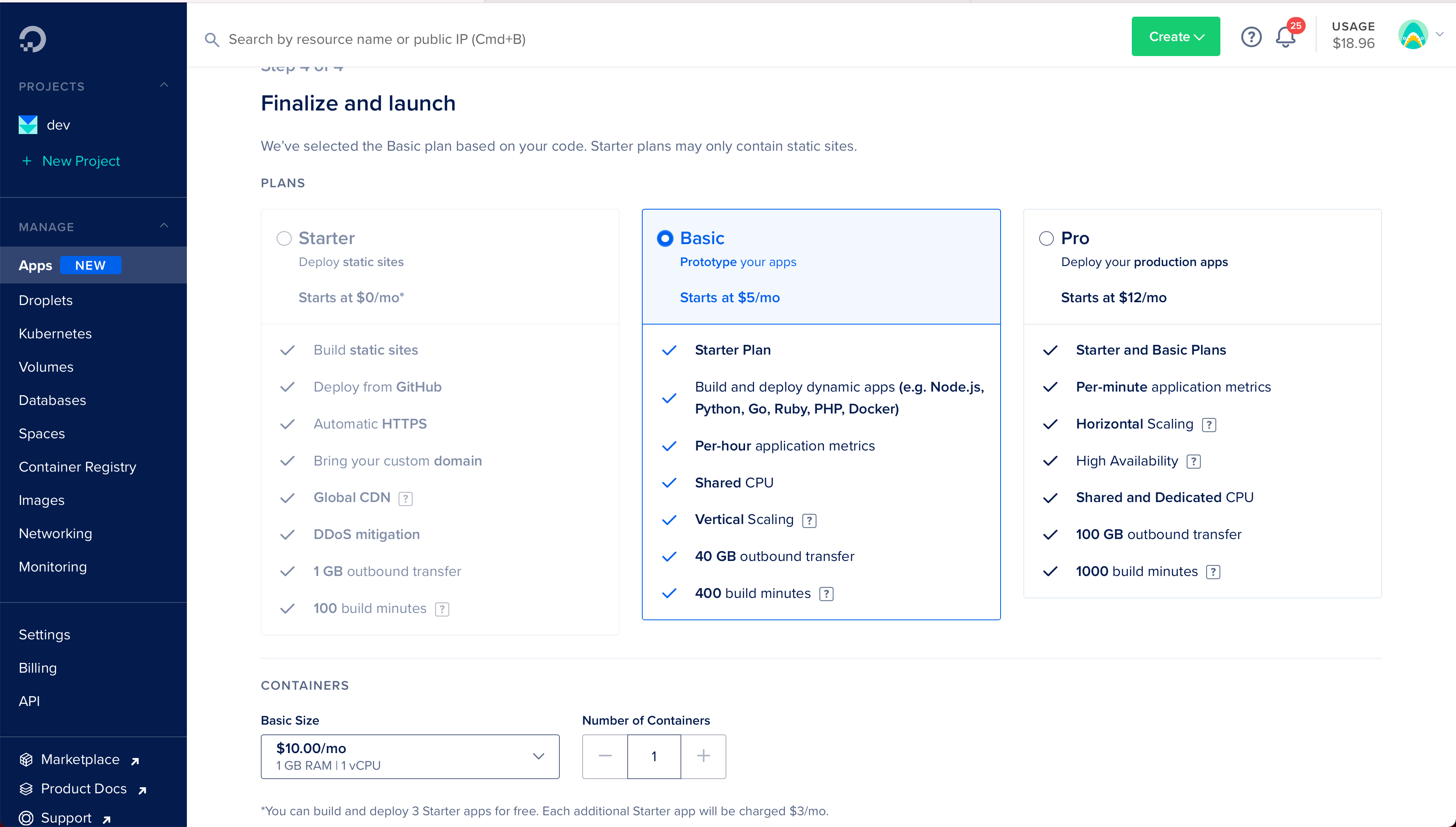
Choose the Basic plan (you can change it later), and click Launch Basic App.
It will take several minutes to build the dependencies and deploy the final code.
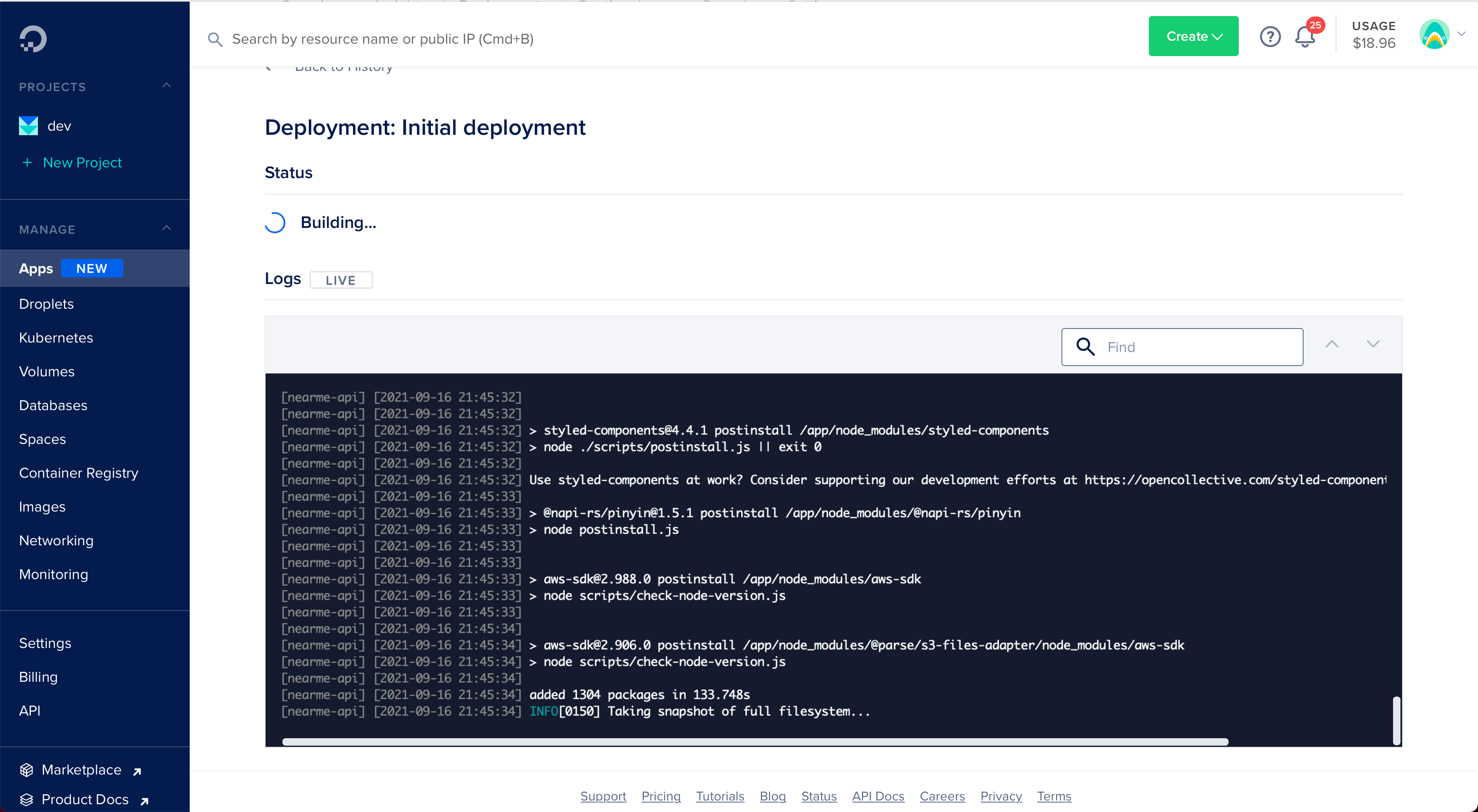
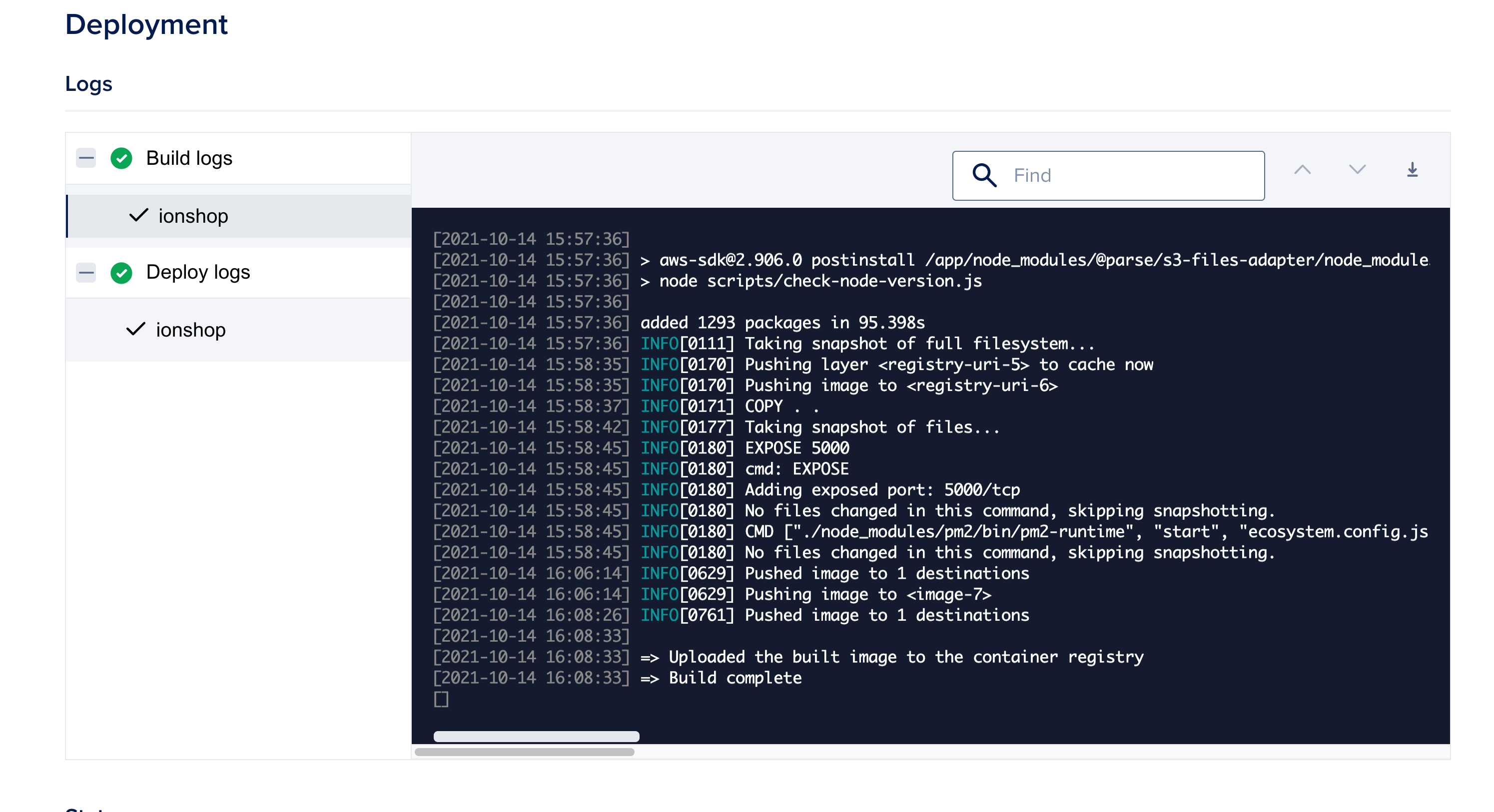
Once it’s done, if you get a similar output, the deployment ended well.
To use a custom domain, click Settings > Add Domain
Depending in your situation, choose the option more suitable for you. In our case, we have our domain hosted on another provider. So we need to create a CNAME record as instructed.
Create Super Admin user
If everything went well, navigate to your app domain (ex.: https://cloud.yourdomain.com), and fill out the form to create the Super Admin.
The Parse Dashboard login page should appear. Go here to see which variables are needed to access to this tool.
Setup File Storage
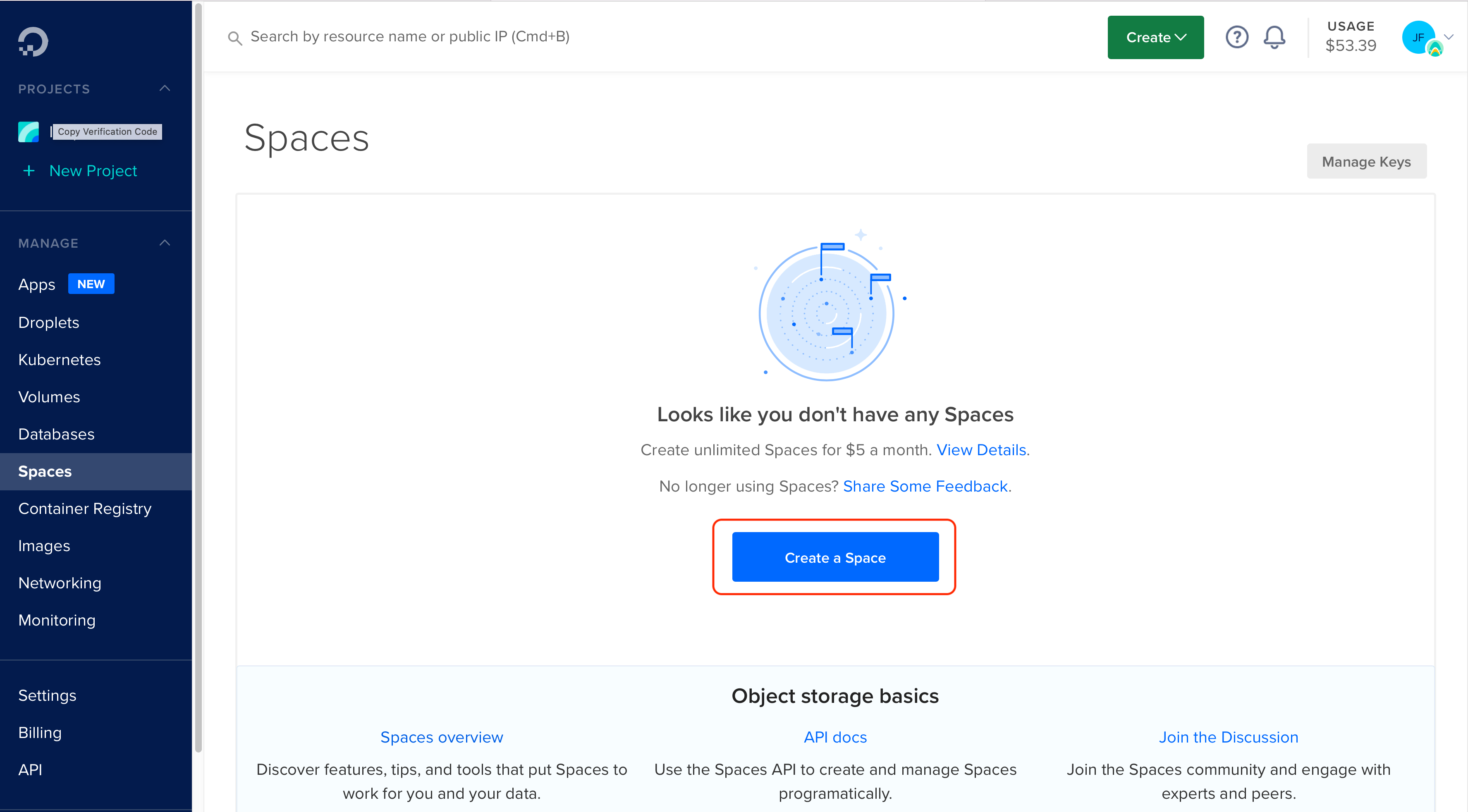
Go to Spaces, and click Create a Space.
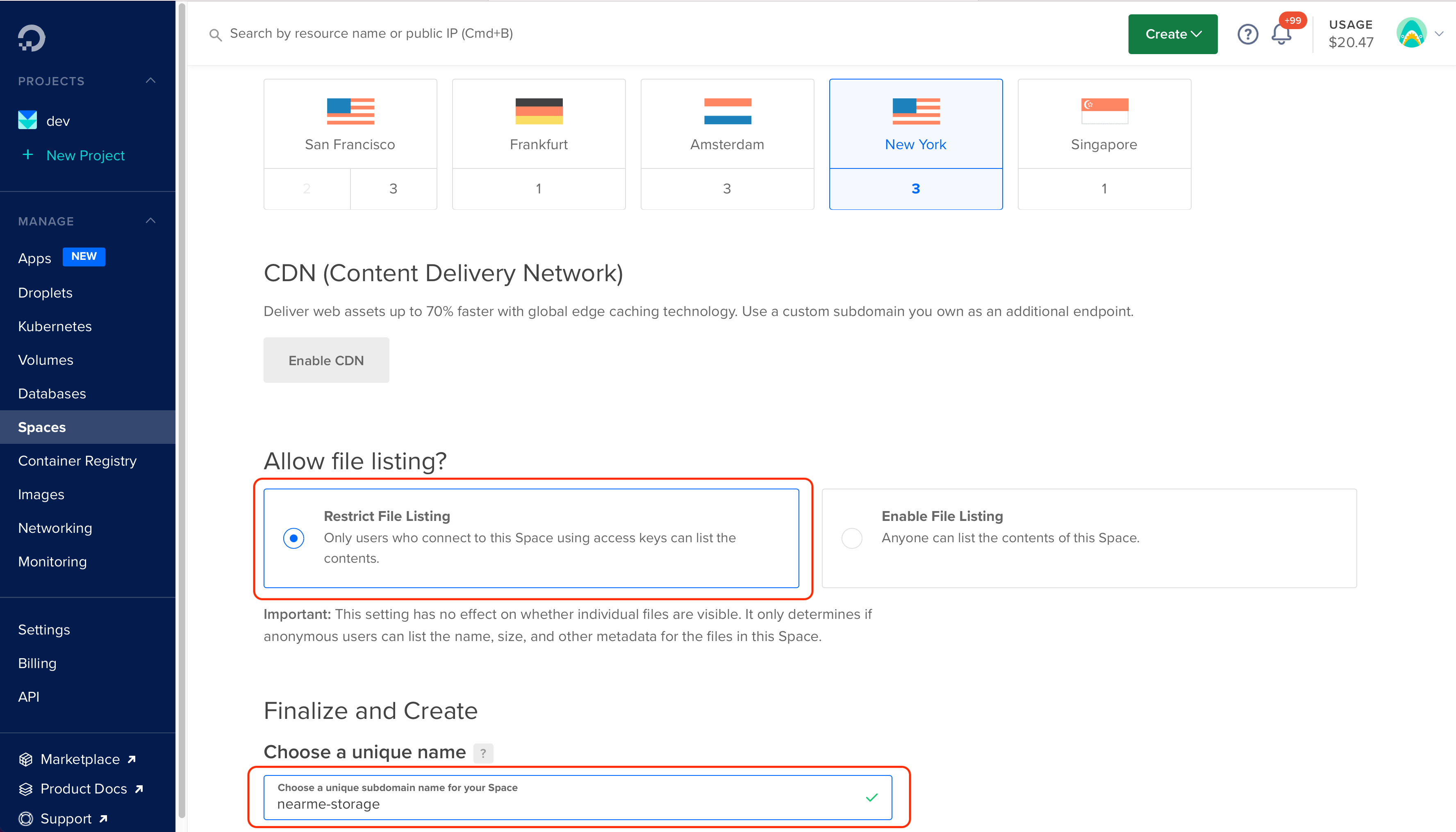
Select a Region and type a unique name for the Space.
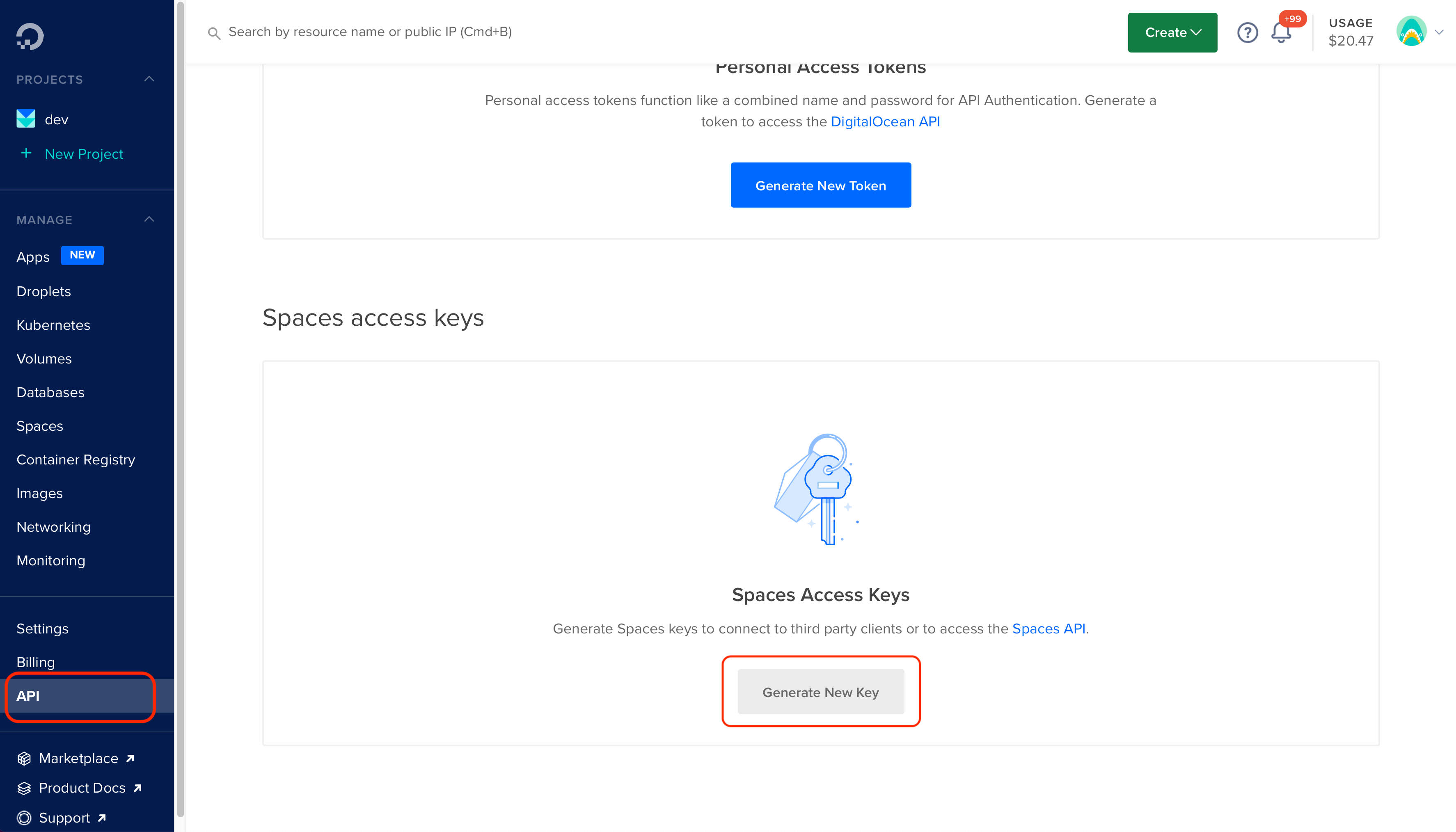
Go to API and under Spaces access keys, click Generate New Key.
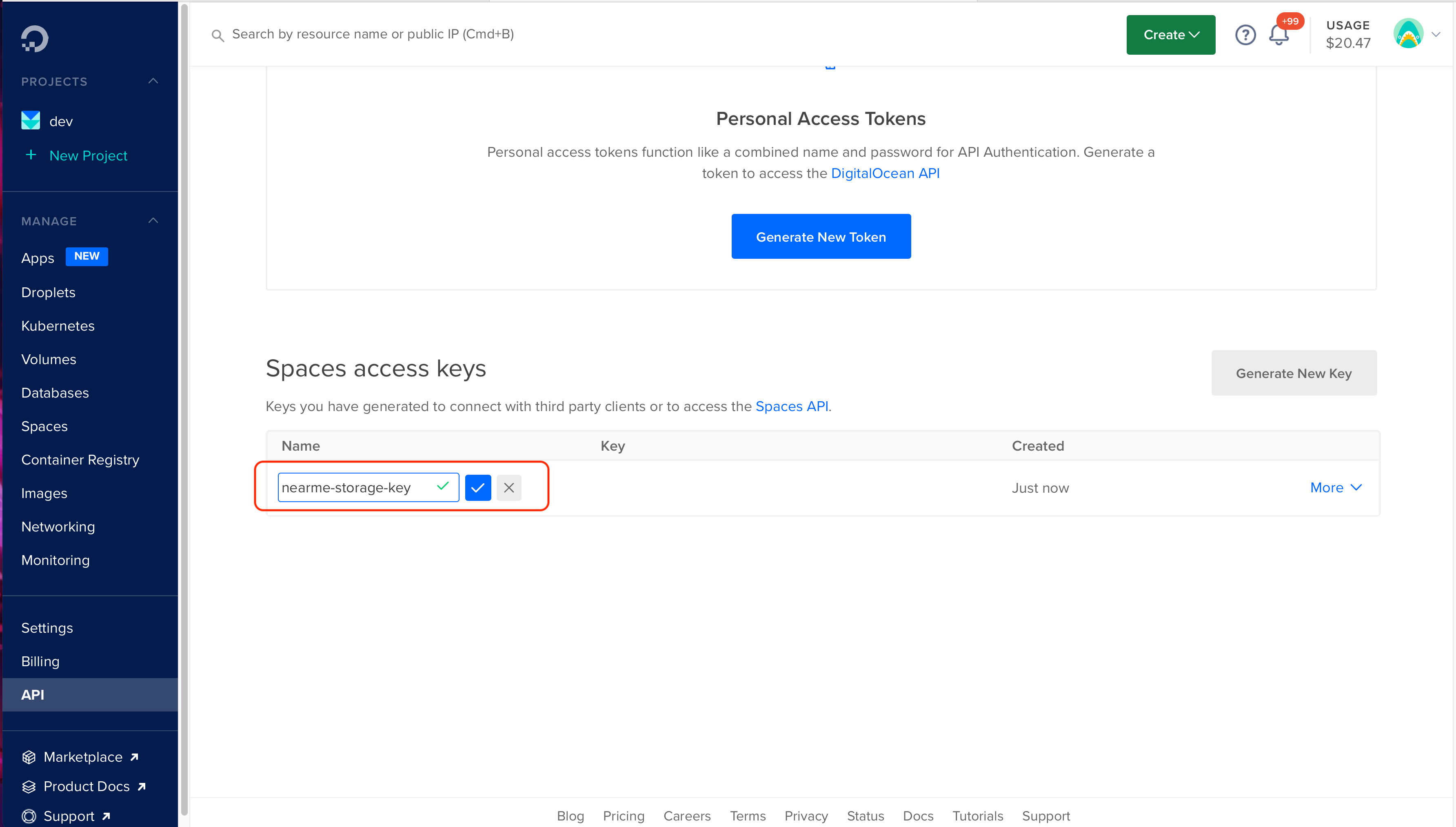
Type a name for the access key.
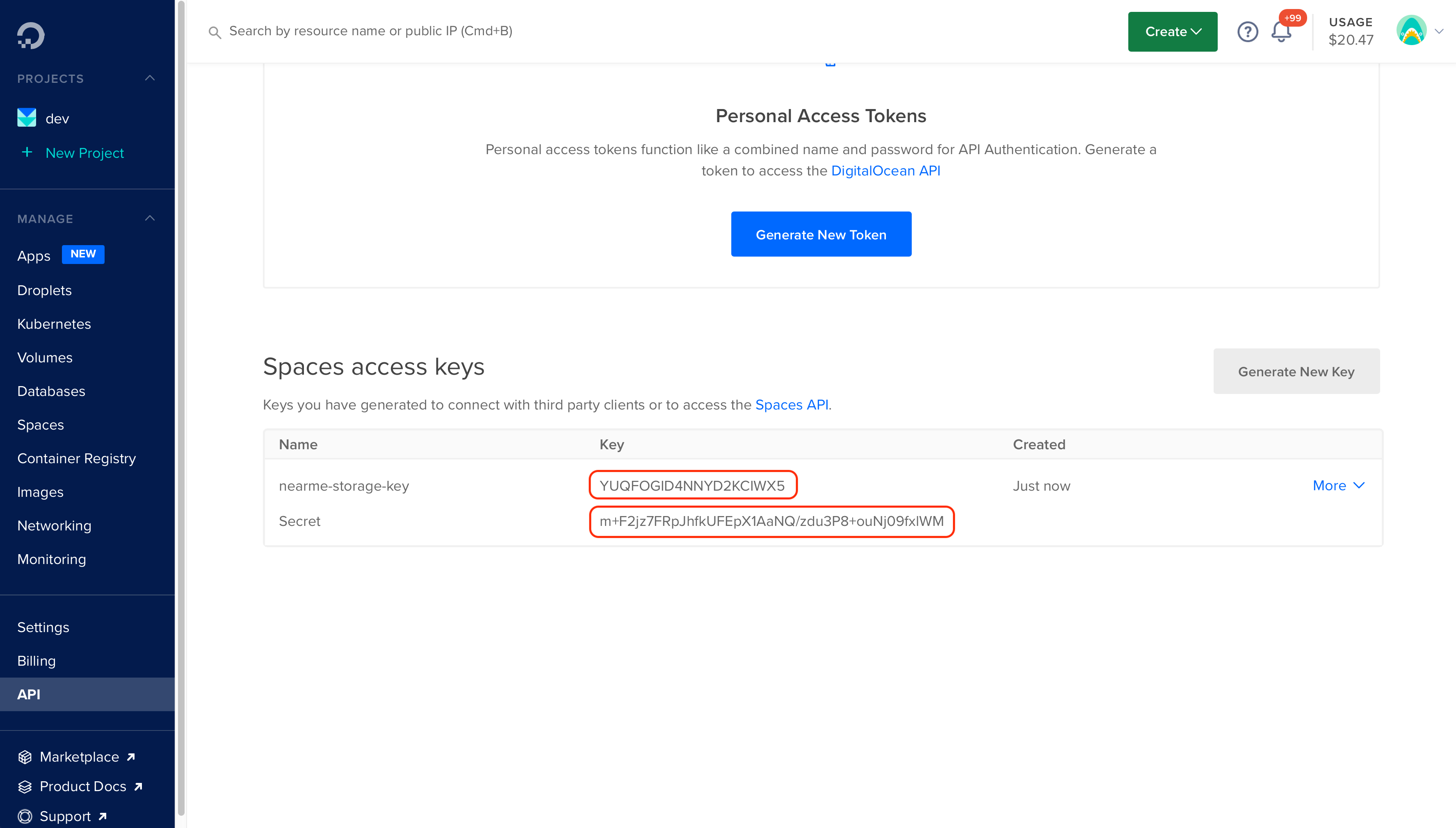
Once the key is created, it will display the access and private key.
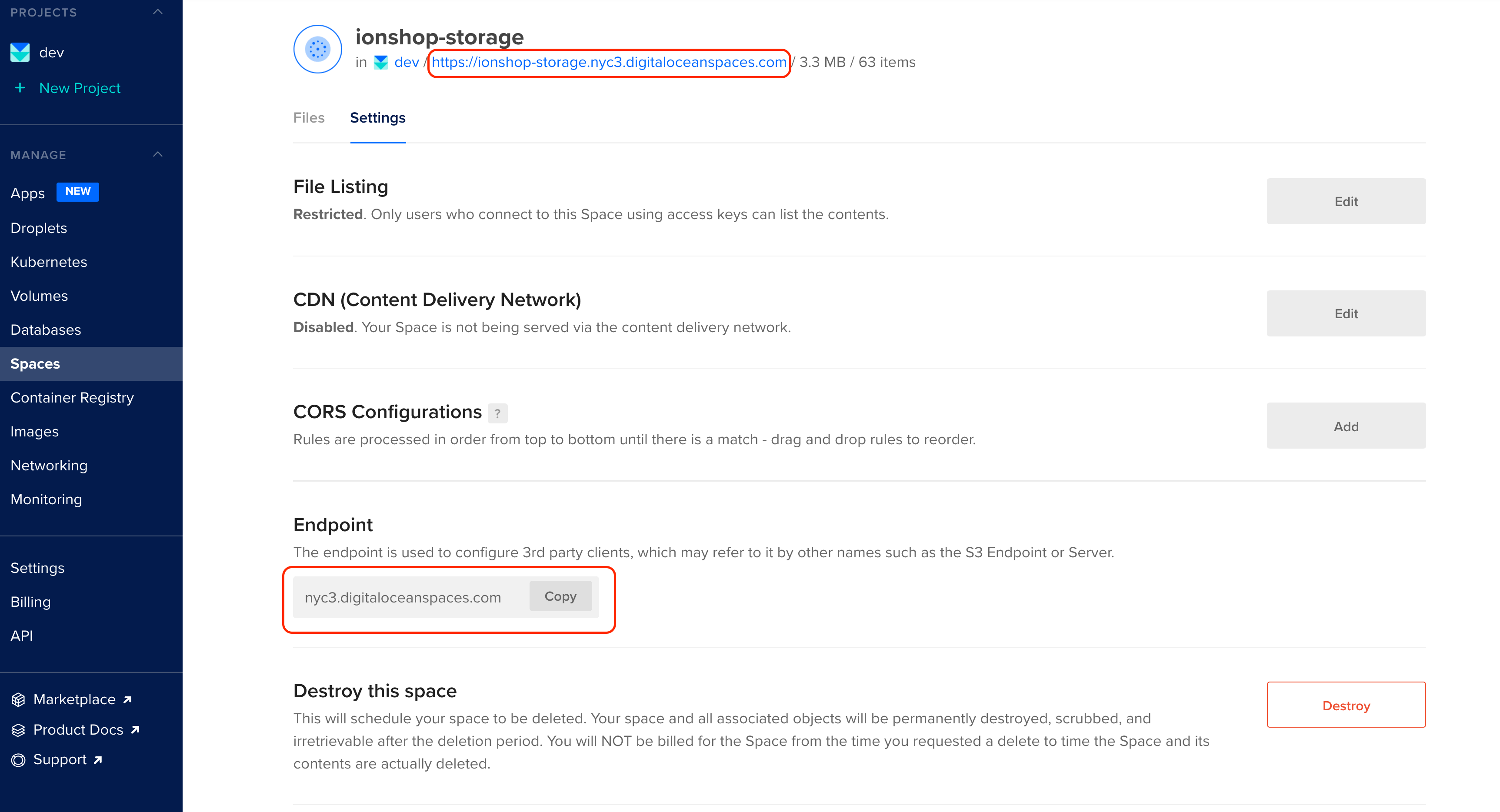
Go back to Spaces, click Settings and take note of your Space URL and Space endpoint.
Navigate to Apps, select your app and click Settings. Select the component, and under Environment variables, click Edit.
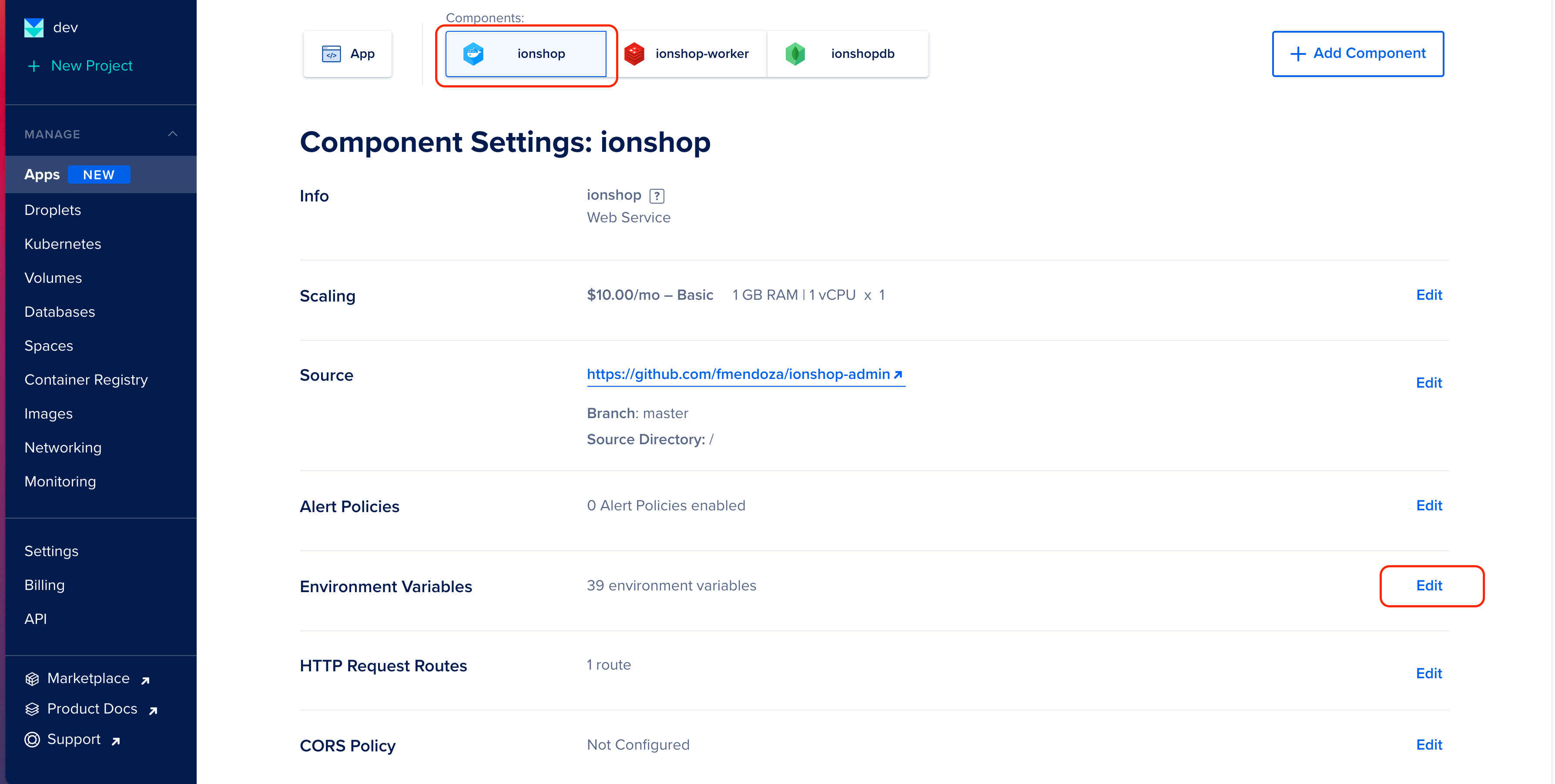
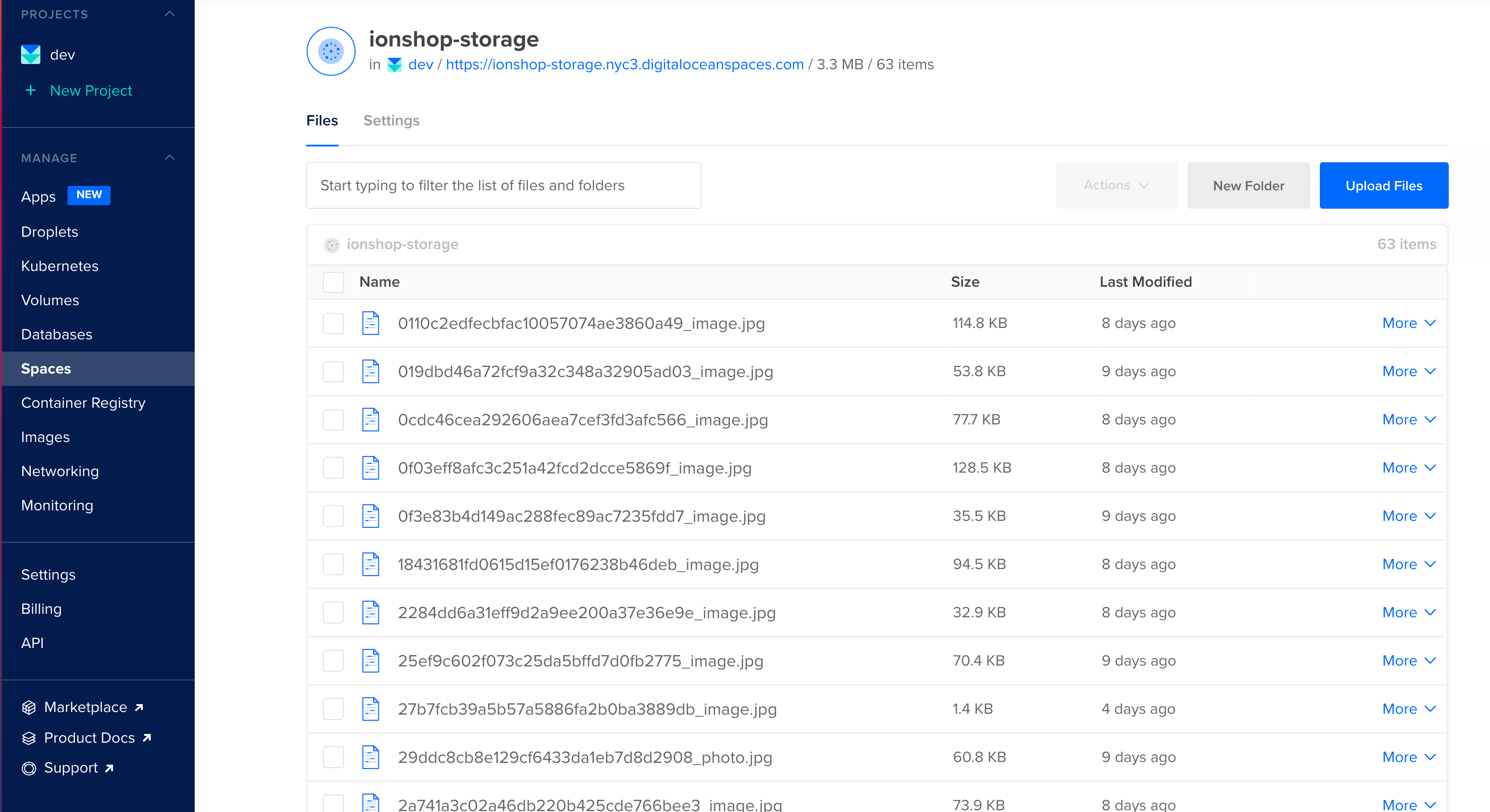
Add the following variables:
SPACES_ENDPOINTSPACES_BUCKET_NAMESPACES_BASE_URLSPACES_REGIONSPACES_ACCESS_KEYSPACES_SECRET_KEY
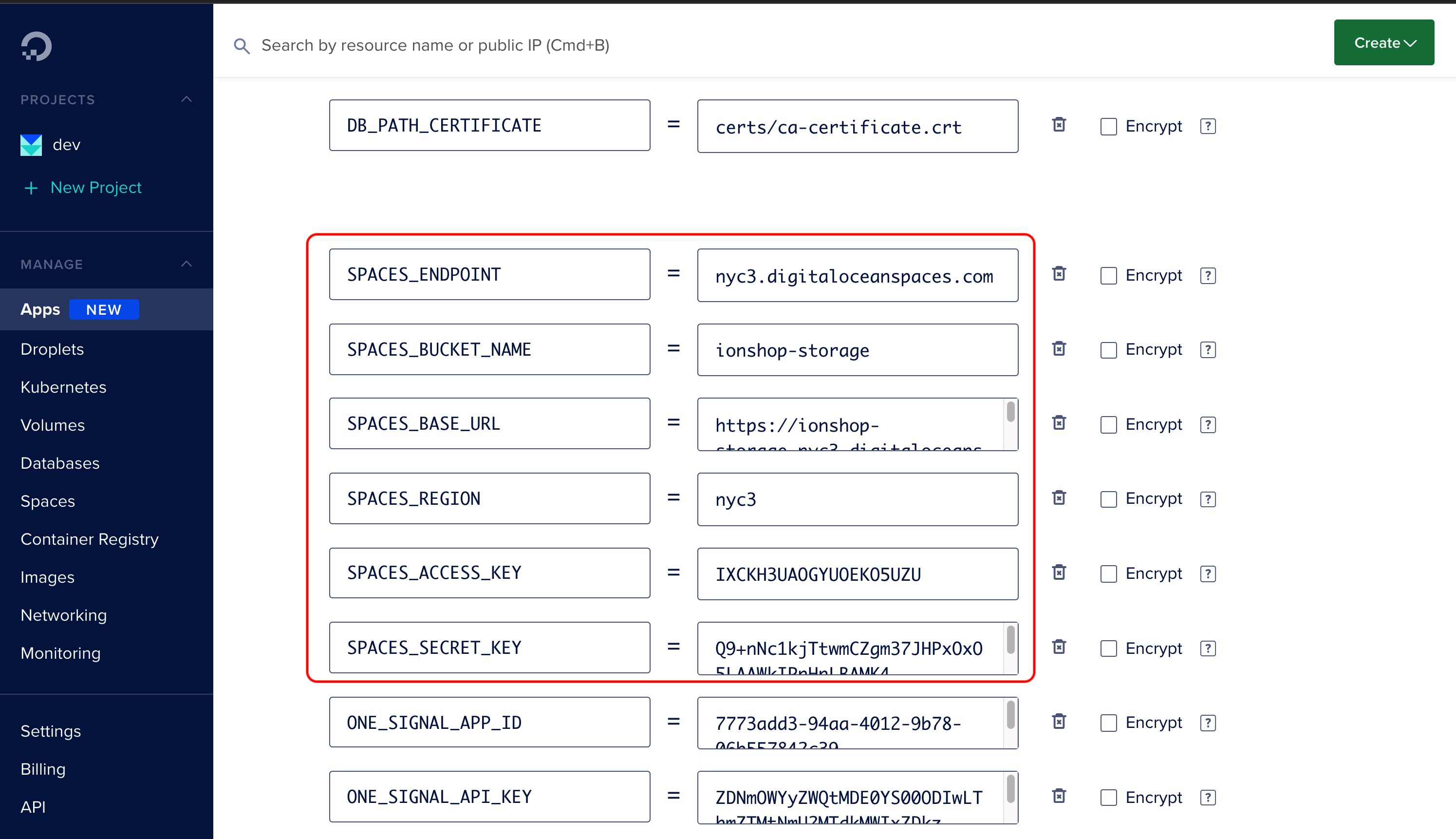
Go ahead and try to add a new category or product with at least one image. If the configuration is correct, you should see the images listed in the Spaces section.
There are other variables that should be set:
CUSTOM_LANGPARSE_DASHBOARD_USERPARSE_DASHBOARD_PASSPARSE_DASHBOARD_USER_READ_ONLYPARSE_DASHBOARD_PASS_READ_ONLYMAILGUN_API_KEYMAILGUN_DOMAINMAILGUN_HOSTMAILGUN_FROM_ADDRESSMAILGUN_PUBLIC_LINKPUSH_ANDROID_SENDER_IDPUSH_ANDROID_API_KEYPUSH_IOS_BUNDLE_ID
Click here to learn how to setup these variables. The only difference is that the variables should be added following the same steps described in this page.
Setup Redis (optional)
- On the top menu, Click Create > Databases
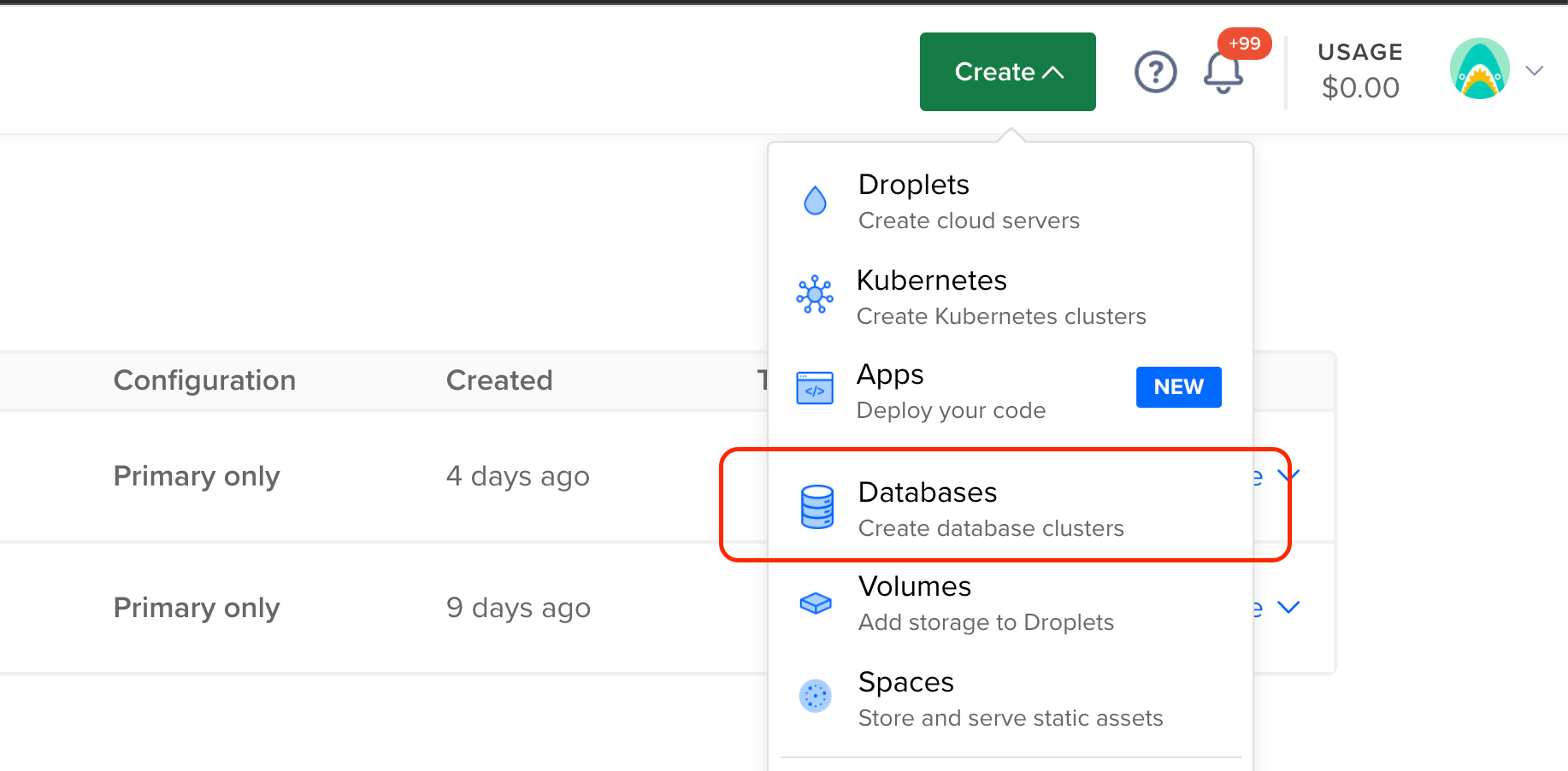
Choose Redis, and your desired cluster configuration, data-center and a unique name for your cluster.
Click Apps > Select app > Settings > Add Component > Database
Select Previously Created DigitalOcean Database, choose your redis database, and click Attach Database.
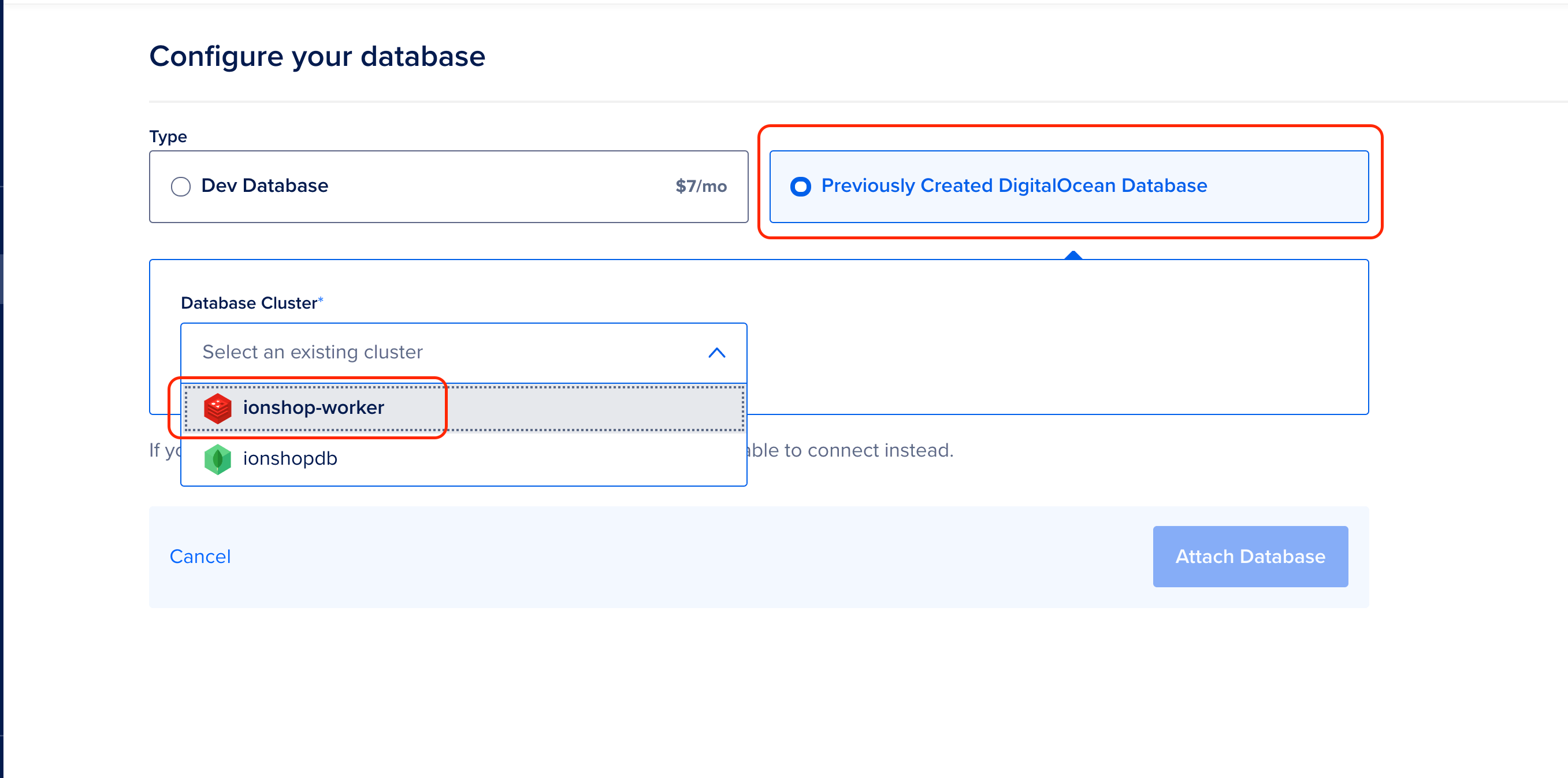
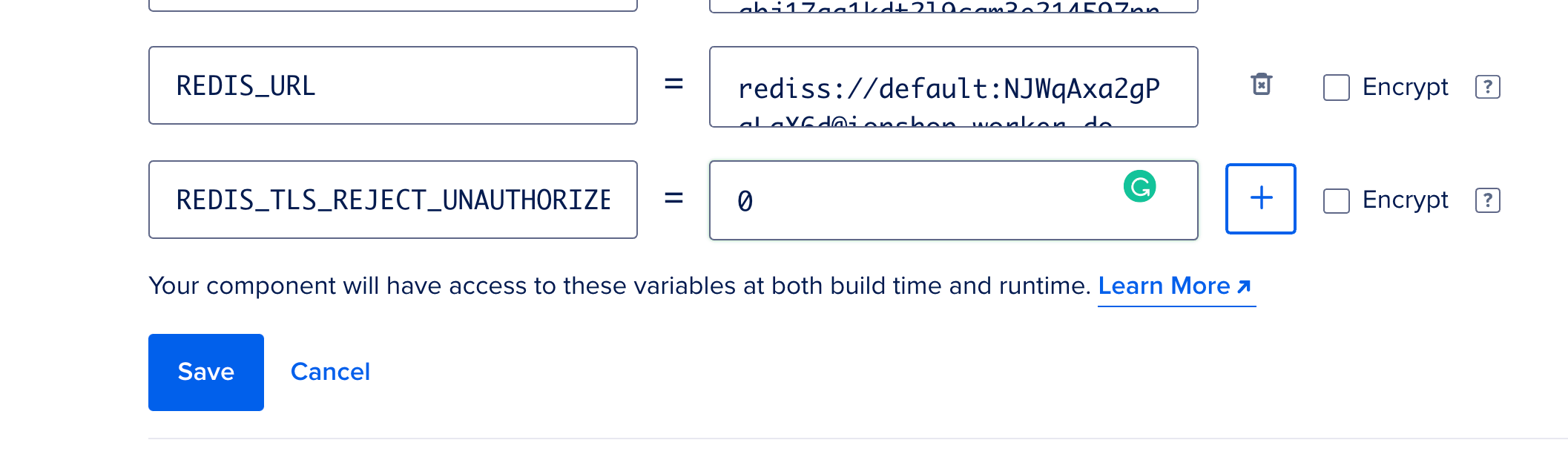
- Go to Environment variables > Edit, and you will notice a new REDIS_URL variable. Now, to finish the setup, we need the following variable:
REDIS_TLS_REJECT_UNAUTHORIZED=0
Install Admin Portal
The steps to install the admin portal are pretty much the same as the instructions above.
Go to the ionshop-X.X.X/admin folder, initialize a new repo and push all the code to a Github.
Visit DigitalOcean and click on Apps > Launch your App.
Choose GitHub as the source. Select the repo and click Next.
Under Type, choose Static site and click Next.
Enter your static site name and click Next.
Choose a plan and click Launch App.
It will take several minutes to build the dependencies and deploy the final code. Once the Deployed successfully! message appears, navigate to the app domain (appname.ondigitalocean.app), and you should see the Admin Portal login page. Here, enter your Super Admin credentials, and that’s it!.